How to Reset a Password
Why Resetting Your Password Is Important
Resetting your password helps protect your account and maintain security.
You might need to do this if:
- You’ve forgotten your current password;
- You think someone else might have gained access;
- You just want to update your password for safety reasons.
💡 We recommend updating your password every few months and avoiding the reuse of passwords from other platforms.
There Are Two Ways to Reset Your Password
You can reset your Bothub password either:
1. During login (if you forgot it), or
2. Directly from your profile (if you know your current password)
Let’s go through both options below 👇
Option 1 — Reset Password During Login
If you can’t sign in, you can easily reset your password from the login page.
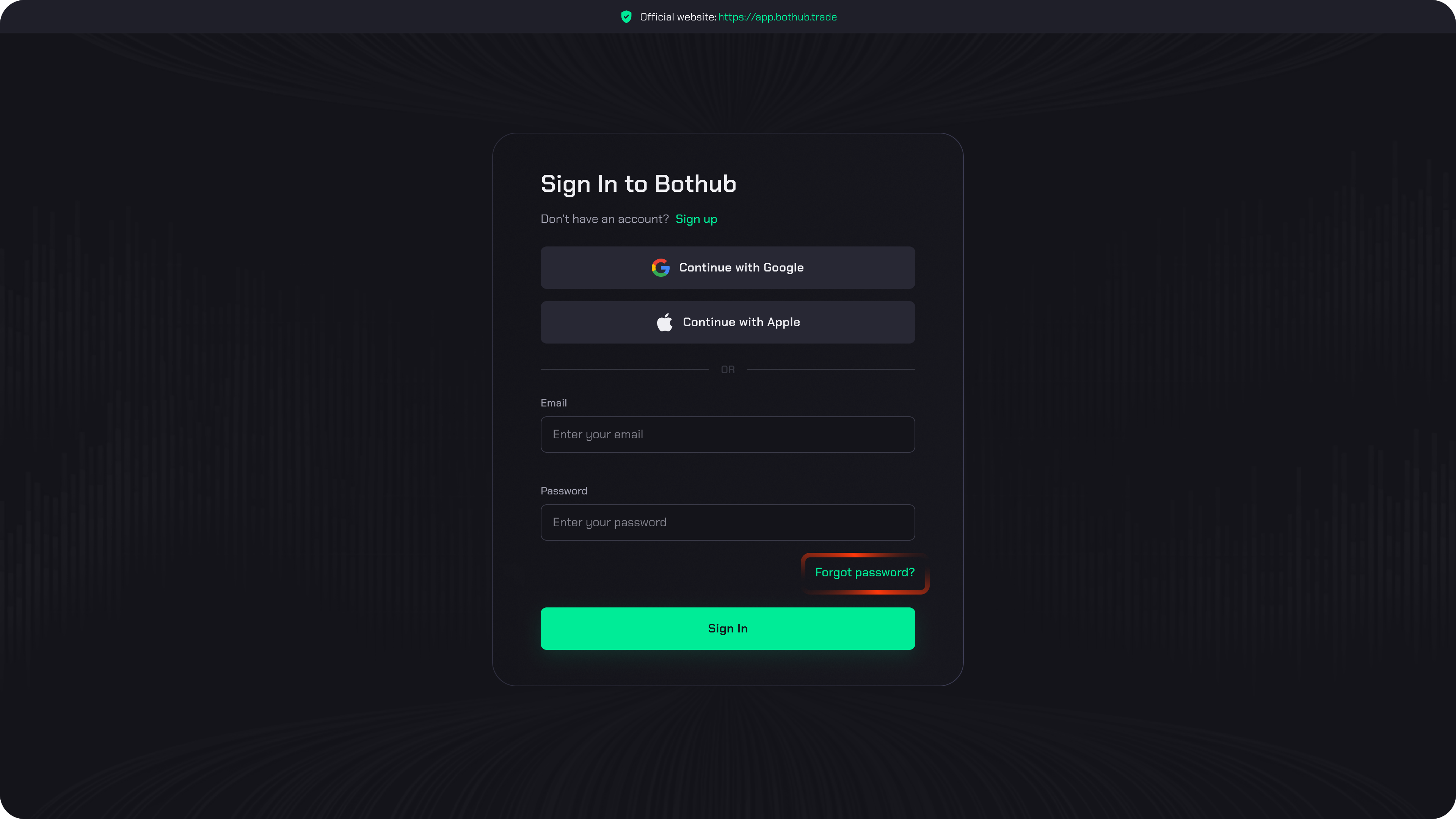
Step 1 — Go to the Login Page
Visit app.bothub.trade and click “Forgot password?”
Step 2 — Enter Your Email
Enter the email address associated with your Bothub account and click Send Link.
You’ll receive a message from [email protected] containing a secure link to reset your password.
Step 3 — Open the Link
Open your email, find the message, and click the Reset Password link inside.
This will take you to the password reset page.
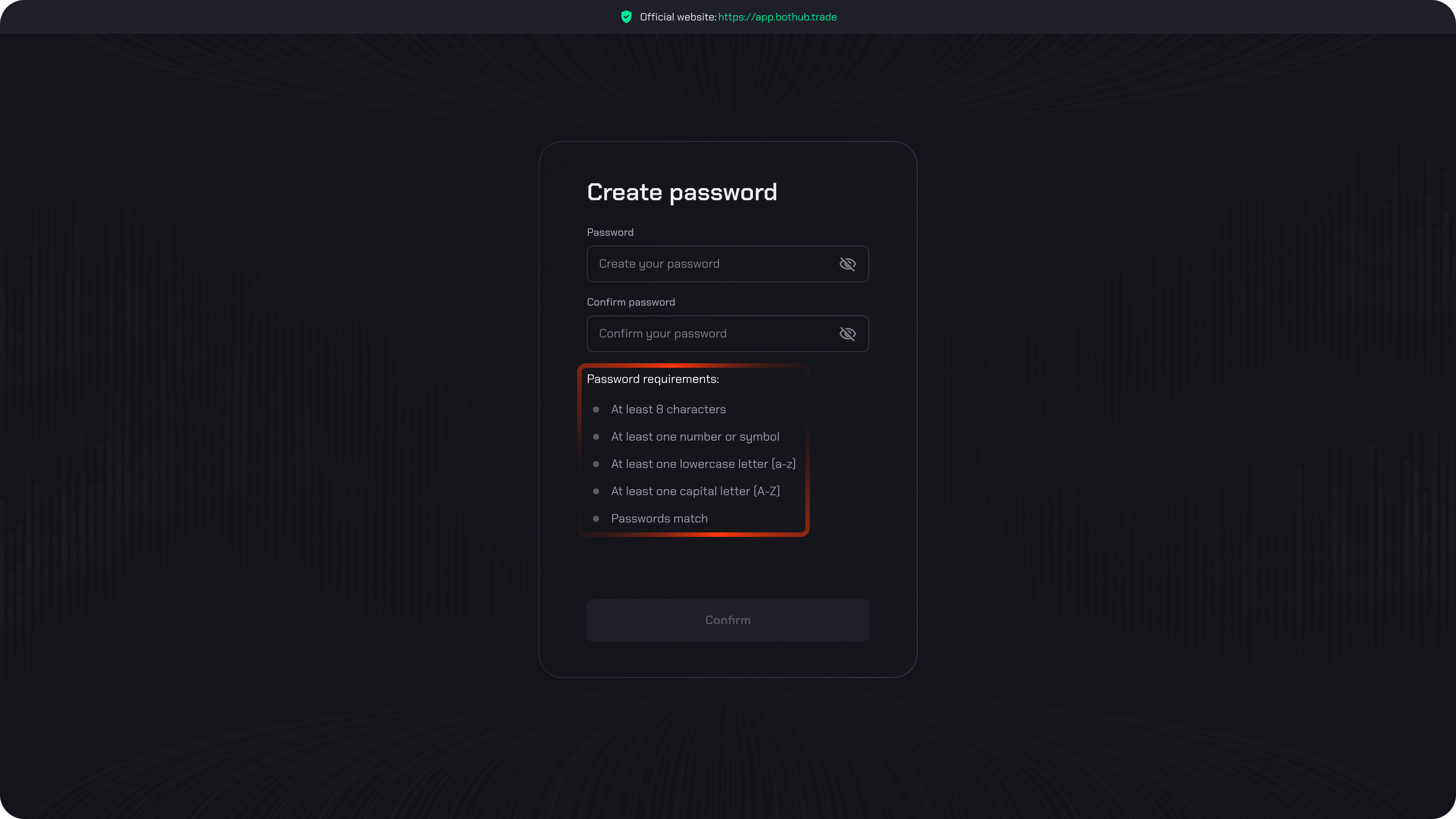
Step 4 — Create a New Password
Enter a new password that meets Bothub’s security requirements:
- At least 8 characters
- At least one number or symbol
- At least one lowercase letter (a-z)
- At least one capital letter (A-Z)
Click Confirm, and your password will be successfully updated.
You can now log in with your new password.
Option 2 — Change Password from Your Profile
If you’re already logged in and simply want to change your password:
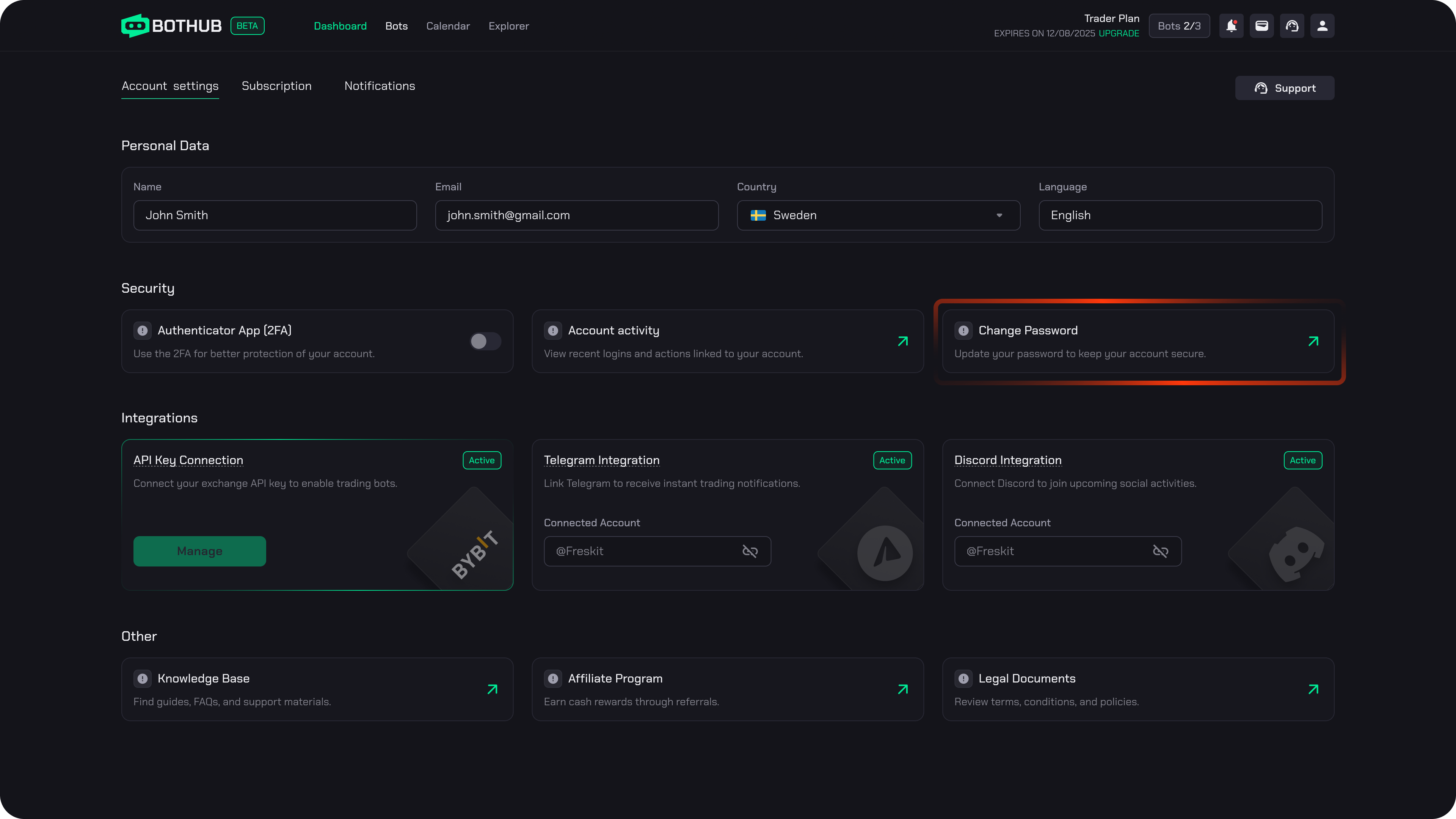
Step 1 — Go to Your Profile
Click your profile icon (top-right corner) → select Change Password.
Step 2 — Enter Current Password
For security verification, enter your current password.
Step 3 — Create a New Password
Choose a new password following the same rules:
- At least 8 characters
- At least one number or symbol
- At least one lowercase letter (a-z)
- At least one capital letter (A-Z)
Click Save, and your new password will take effect immediately.
🔒 Your session will remain active, but we recommend logging out and logging back in to confirm everything works properly.
Security Tips
- Don’t reuse old passwords.
- Avoid simple or guessable combinations (like your name or “12345678”).
- Enable [Two-Factor Authentication (2FA)] for extra protection.
- If you suspect your account has been compromised, change your password immediately and contact [email protected].
Need Help?
If something doesn’t work as expected or you simply have questions — don’t worry. Our Support Team is here to help you at every step.
You can reach us directly through the in-app chat for quick assistance, or send us an email at [email protected] for more detailed inquiries.
We do our best to respond as fast as possible and make sure every issue is resolved smoothly — so you can focus on what matters most.