How to Connect Kraken to BotHub
Overview
In this guide, we’ll walk you through how to create an API key on Kraken, configure its permissions, and connect it to Bothub for secure automated trading.
💡 Estimated setup time: 5–10 minutes
Step 1 — Log in to Your Kraken Account
1. Go to kraken.com and log in.
2. In the top-right corner, click your profile icon.
3. From the dropdown menu, select Settings.
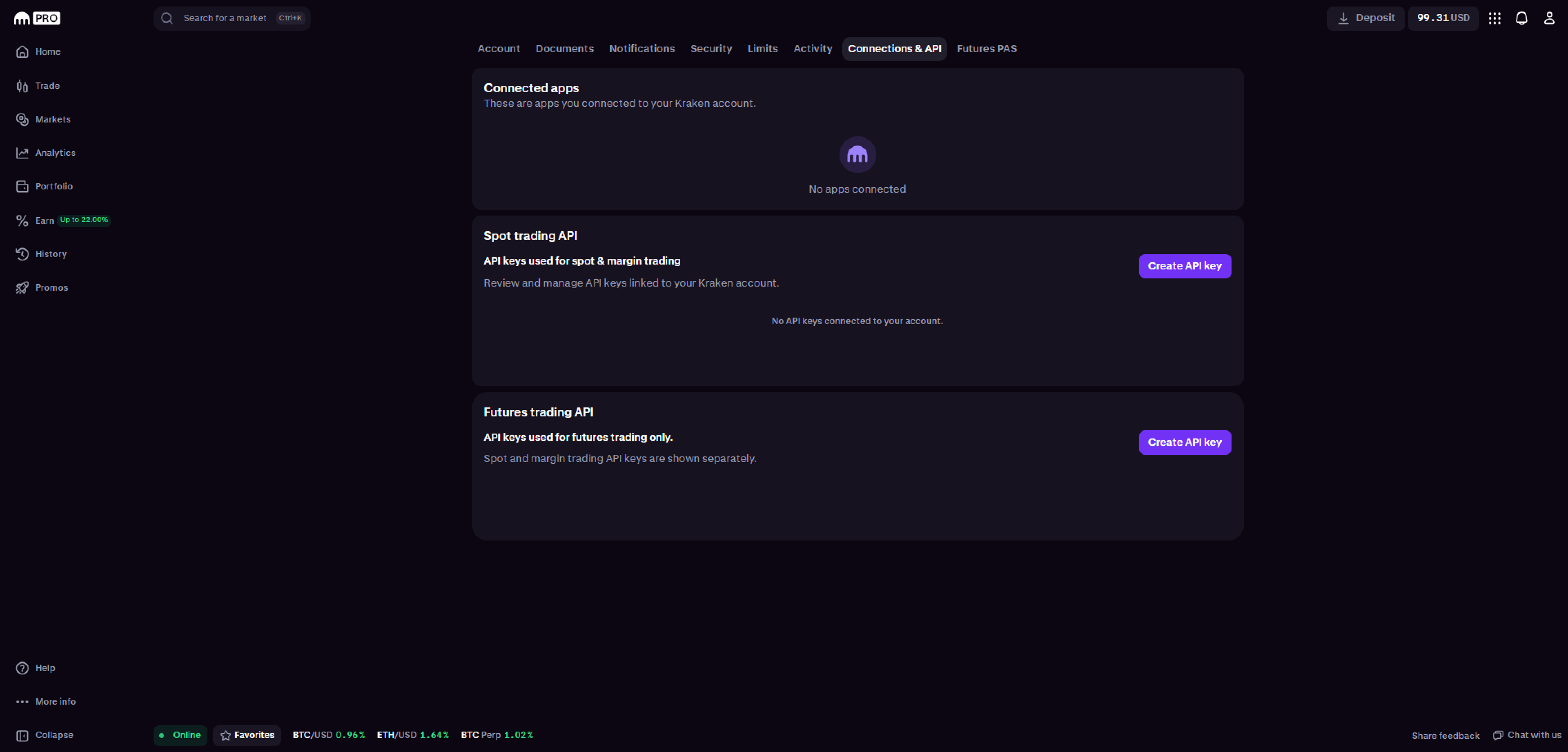
Step 2 — Open the API Settings
1. In the top navigation bar, go to Connections and API.
2. On the API Keys page, click Create API Key.
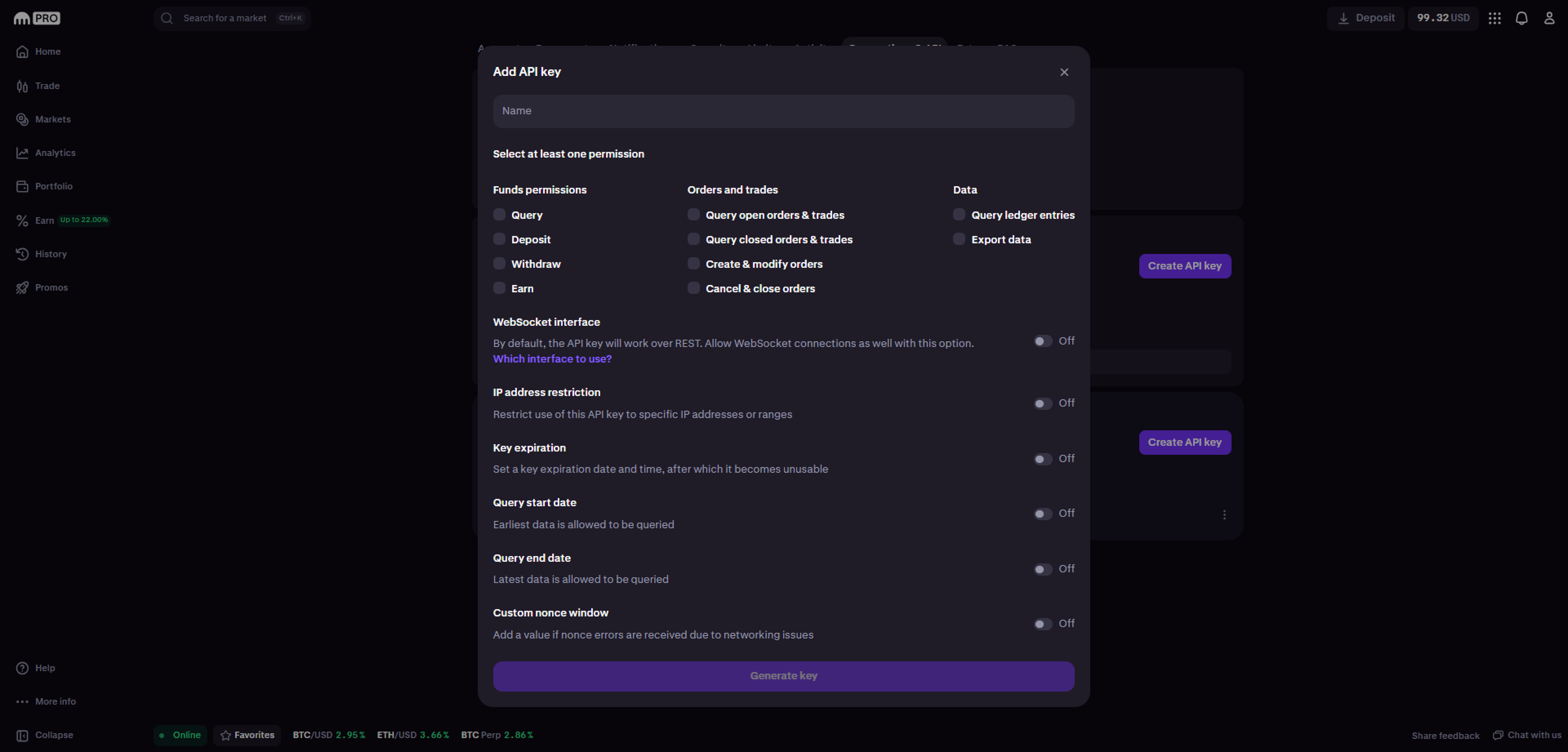
Step 3 — Name Your API Key
In the Name field, give your key a recognizable name — for example: Bothub Trade. This helps you easily identify it later if you need to manage or revoke the key.
Step 4 — Set API Permissions
You’ll now configure which actions the API key can perform.
Under each category, check the following permissions:
✅ Funds Permissions
- Enable Query (to allow Bothub to read your balances).
✅ Orders and Trades
- Enable all permissions in this section (to let BotHub place and manage trades).
✅ Data
- Enable all available options (to provide Bothub with market and account data).
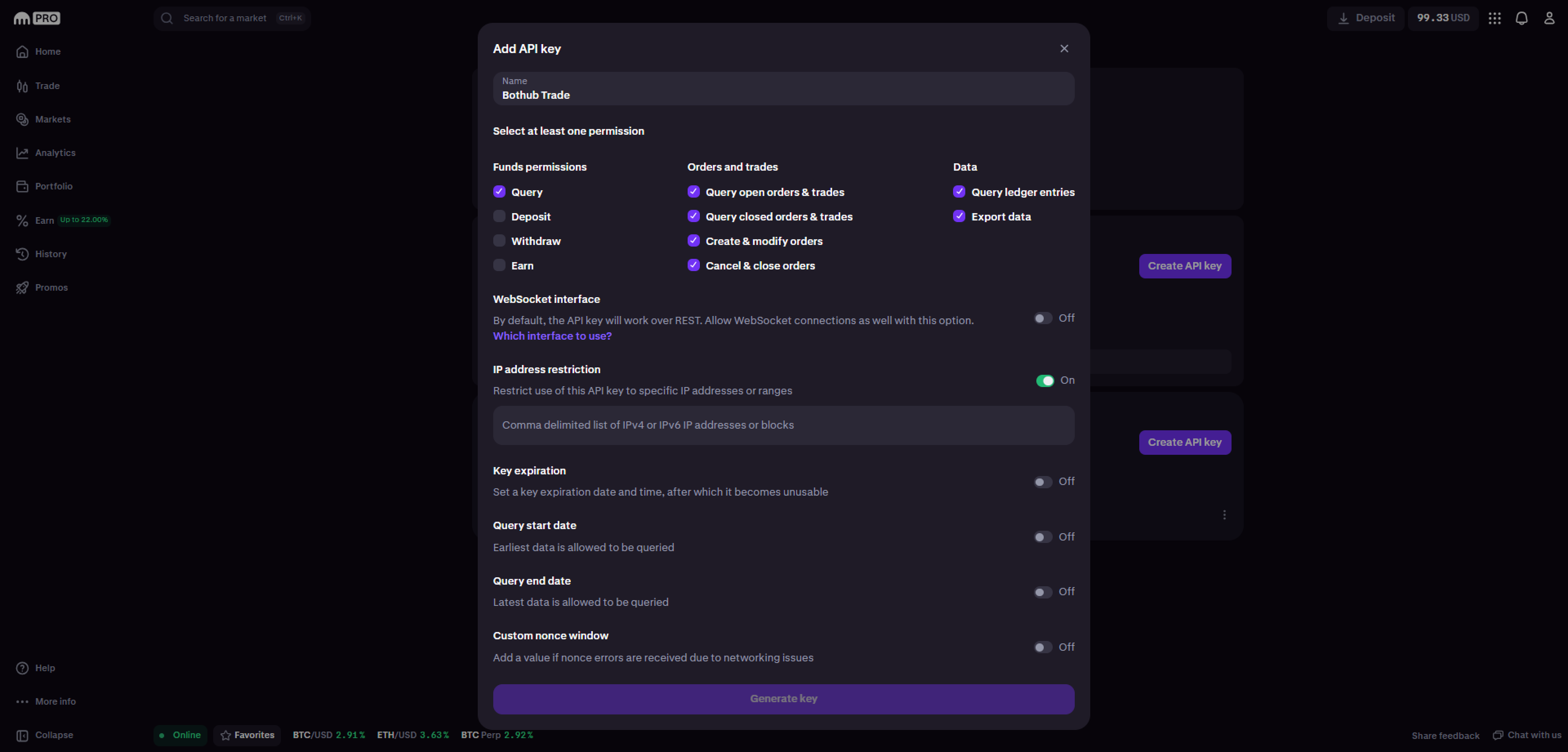
⚠️ Important: Do not enable any permissions related to Withdrawals. Bothub will never request or use withdrawal access.
Step 5 — Add IP Restriction
It’s important to restrict your API key to Bothub’s IP address.
1. Scroll down to the IP Address Restriction section.
2. Toggle the restriction option on.
3. Open Bothub and copy the IP address shown in the “Connect Exchange” modal.
4. Paste that IP address into the field on Kraken.
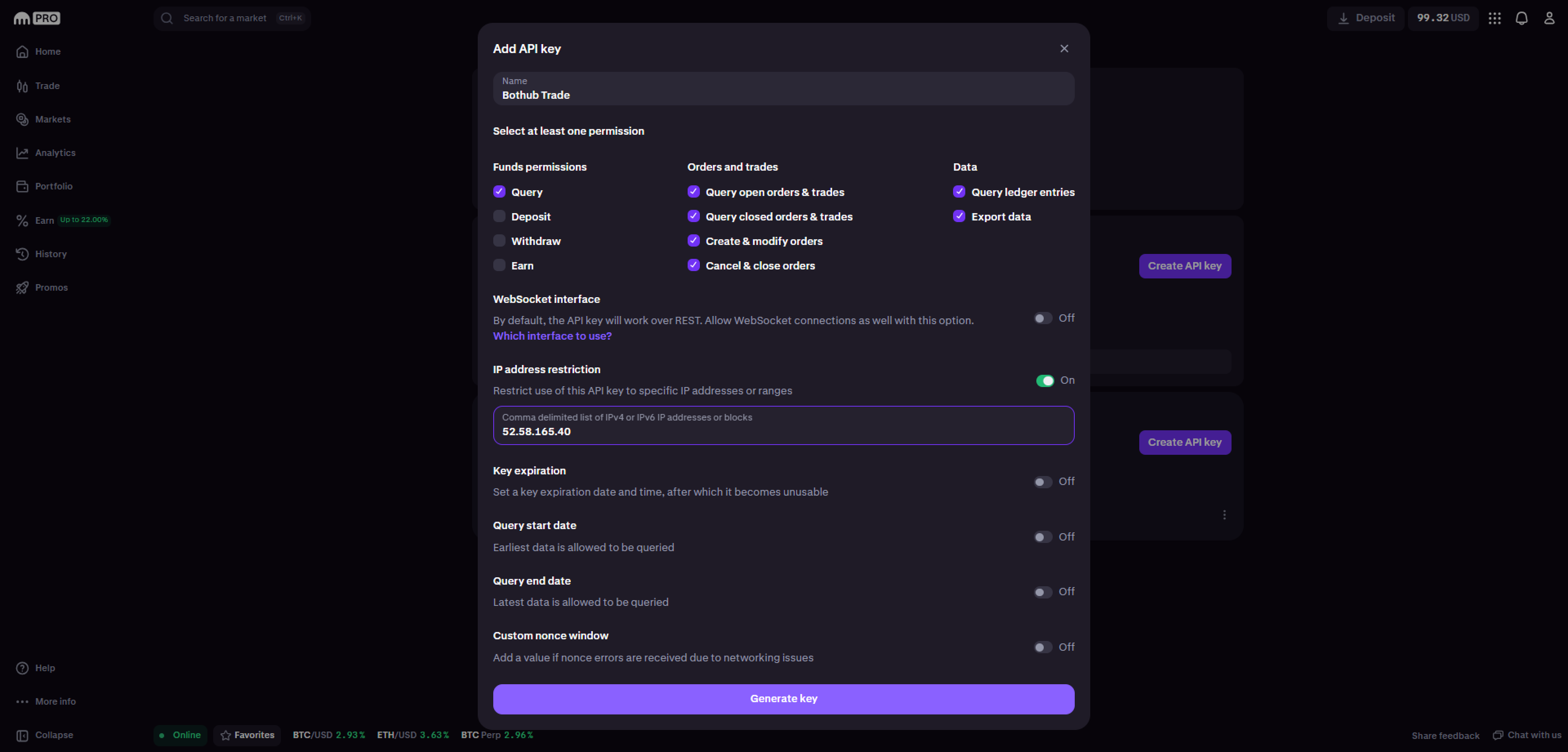
🔒 This ensures that only Bothub’s servers can use your key — protecting your funds even if your API details are compromised.
Step 6 — Generate Your API Key
Once permissions and IP restrictions are configured:
1. Click Generate Key at the bottom of the page.
2. Complete any security verification prompts (2FA, email, etc.).
3. Your new API credentials will appear:
- Public API Key
- Private API Key
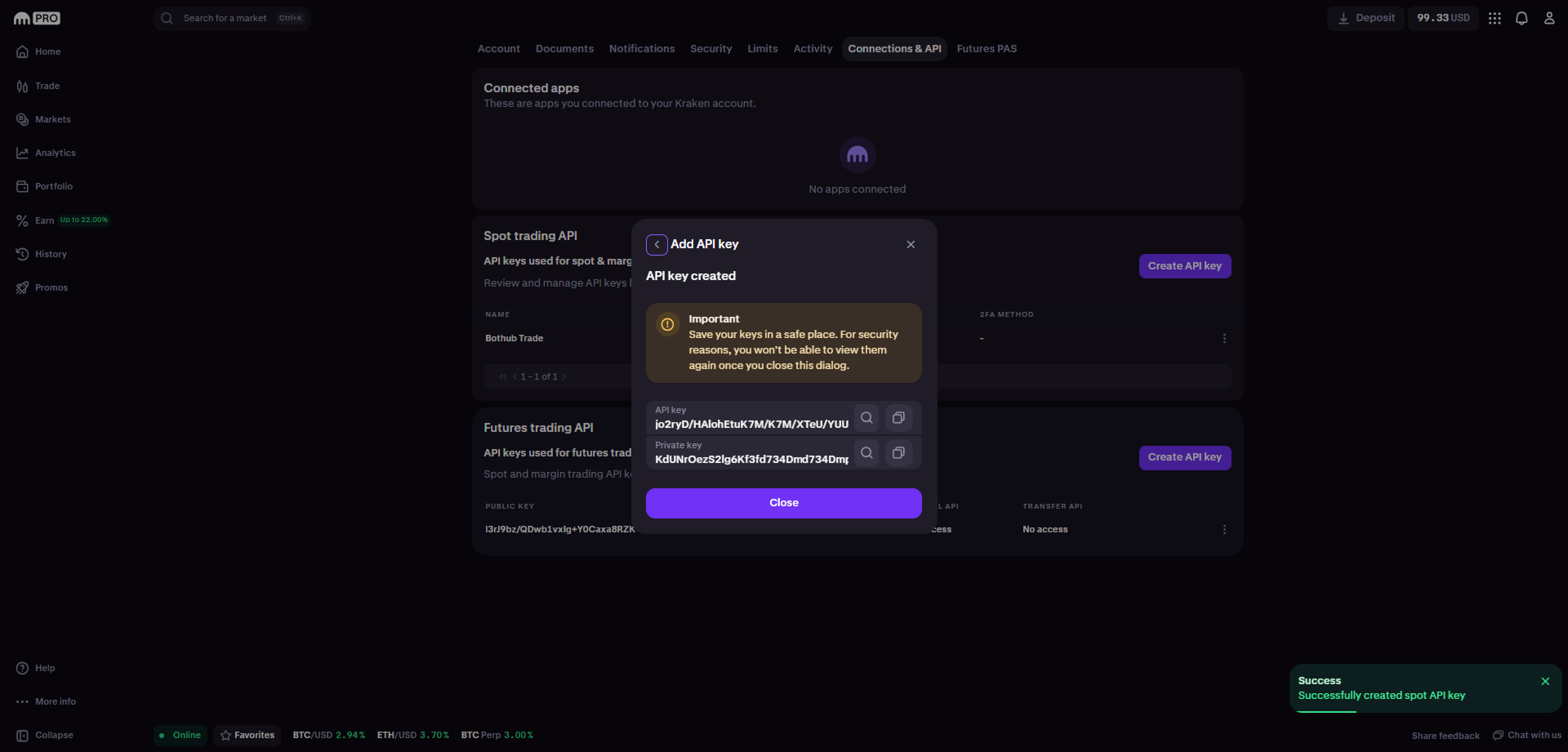
⚠️ Copy both keys immediately — the Private Key will only be shown once.
Step 7 — Connect Kraken to BotHub
1. Go to the Bothub app.
2. Navigate to Connect Exchange → Kraken.
3. Paste your Public API Key and Private API Key into the corresponding fields.
4. Click Connect.
If everything is set correctly, you’ll see a confirmation message on the platform.
Step 8 — Verify Connection
Once connected:
- Your Kraken account will appear in your Exchanges list on Bothub.
- You can now allocate funds and activate bots that trade via Kraken.
💡 Tip: You can disconnect or replace your API key at any time in your BotHub settings.
Step 9 — Verify and Start Trading
After connection:
- Your Kraken account will appear in your Exchange List.
- You can now allocate funds and activate bots on your dashboard.
- Check the Activity Log to confirm that your bots are trading correctly.
Troubleshooting
If you encounter an error while connecting:
- Double-check that your IP address is correctly added on Kraken.
- Make sure withdrawal permission is not enabled.
- Ensure your API key is active (not expired or deleted).
- Try creating a new API key if the issue persists.
If none of these steps help, reach out to our Support Team via the in-app chat or email us at [email protected] — we’re always here to help.